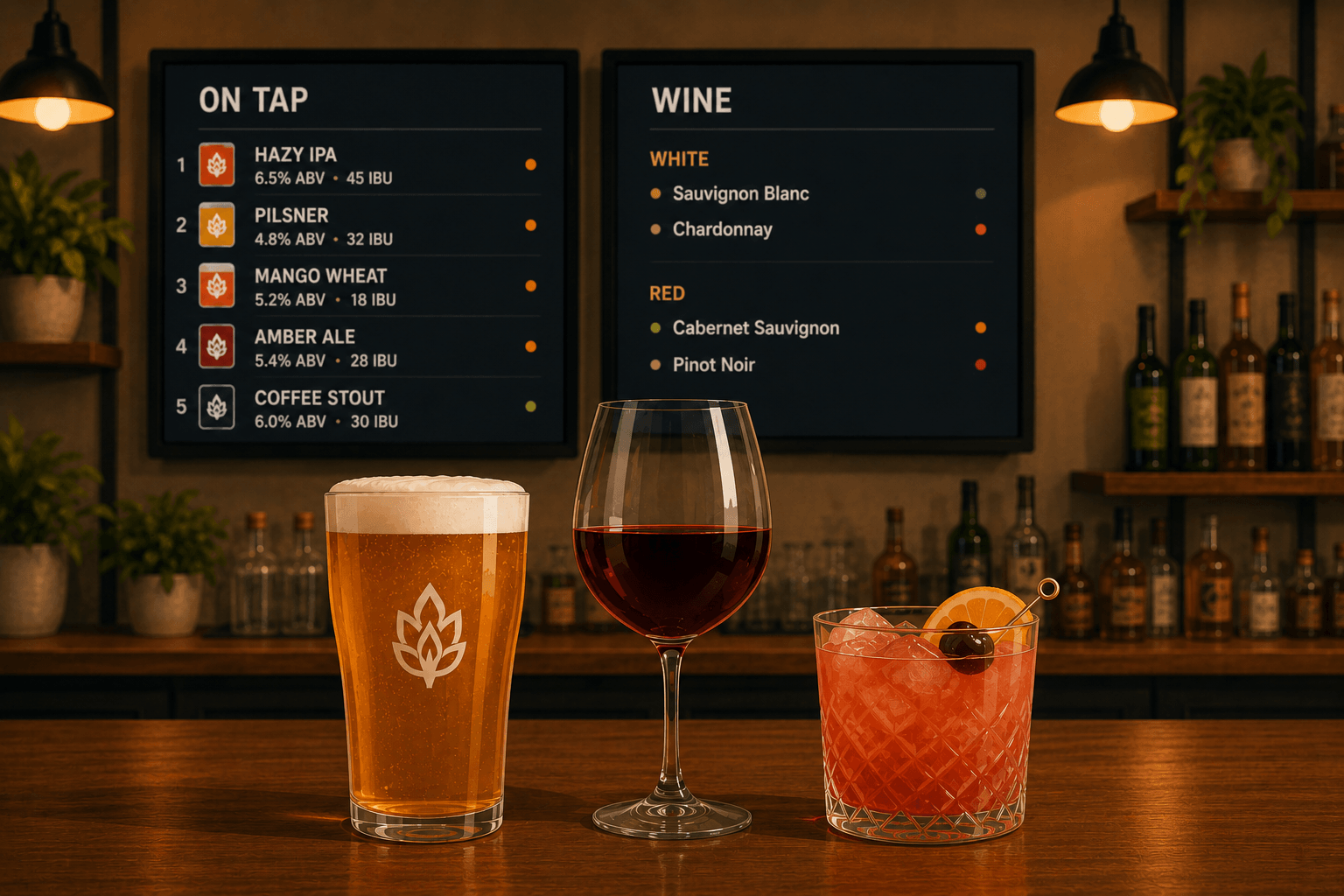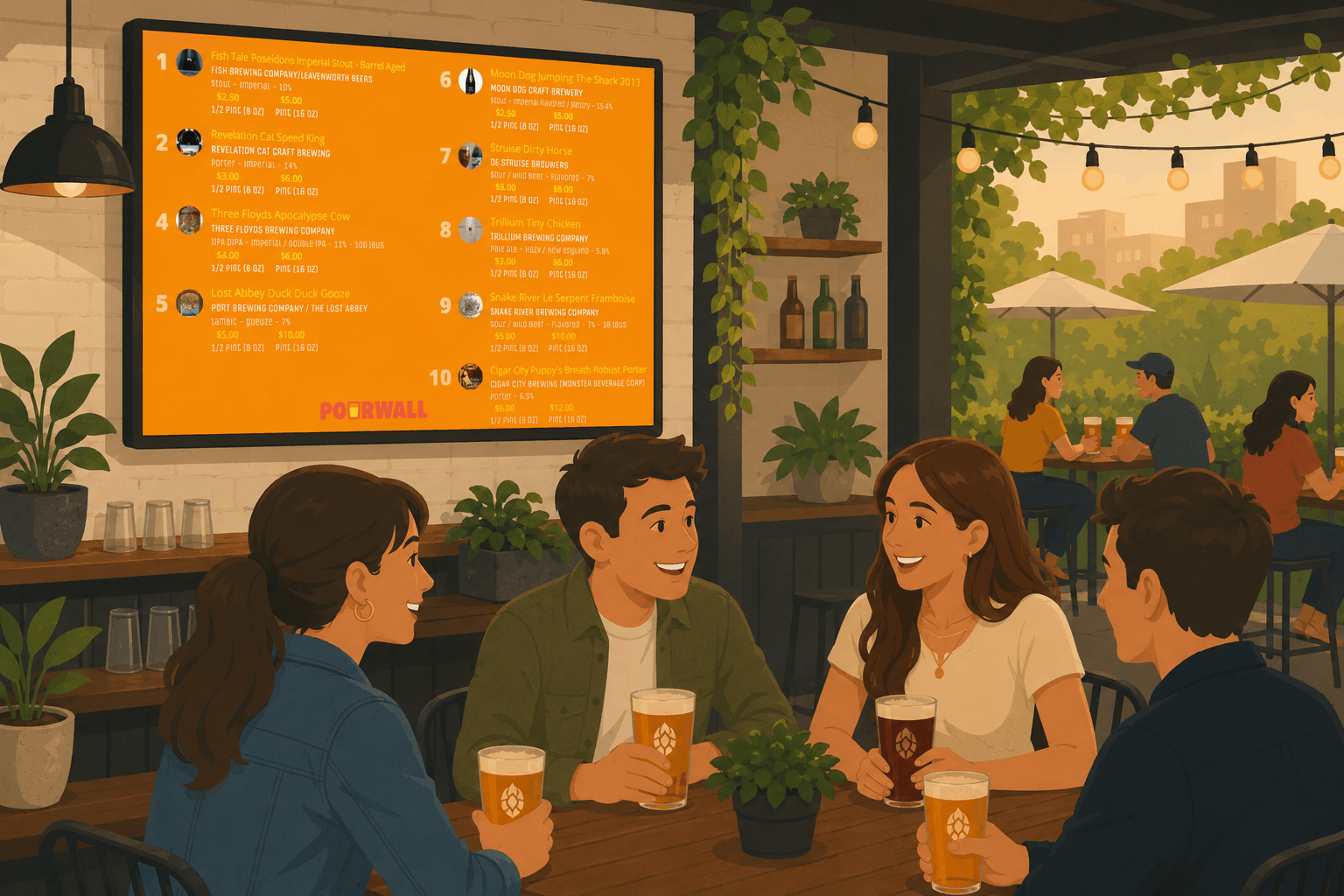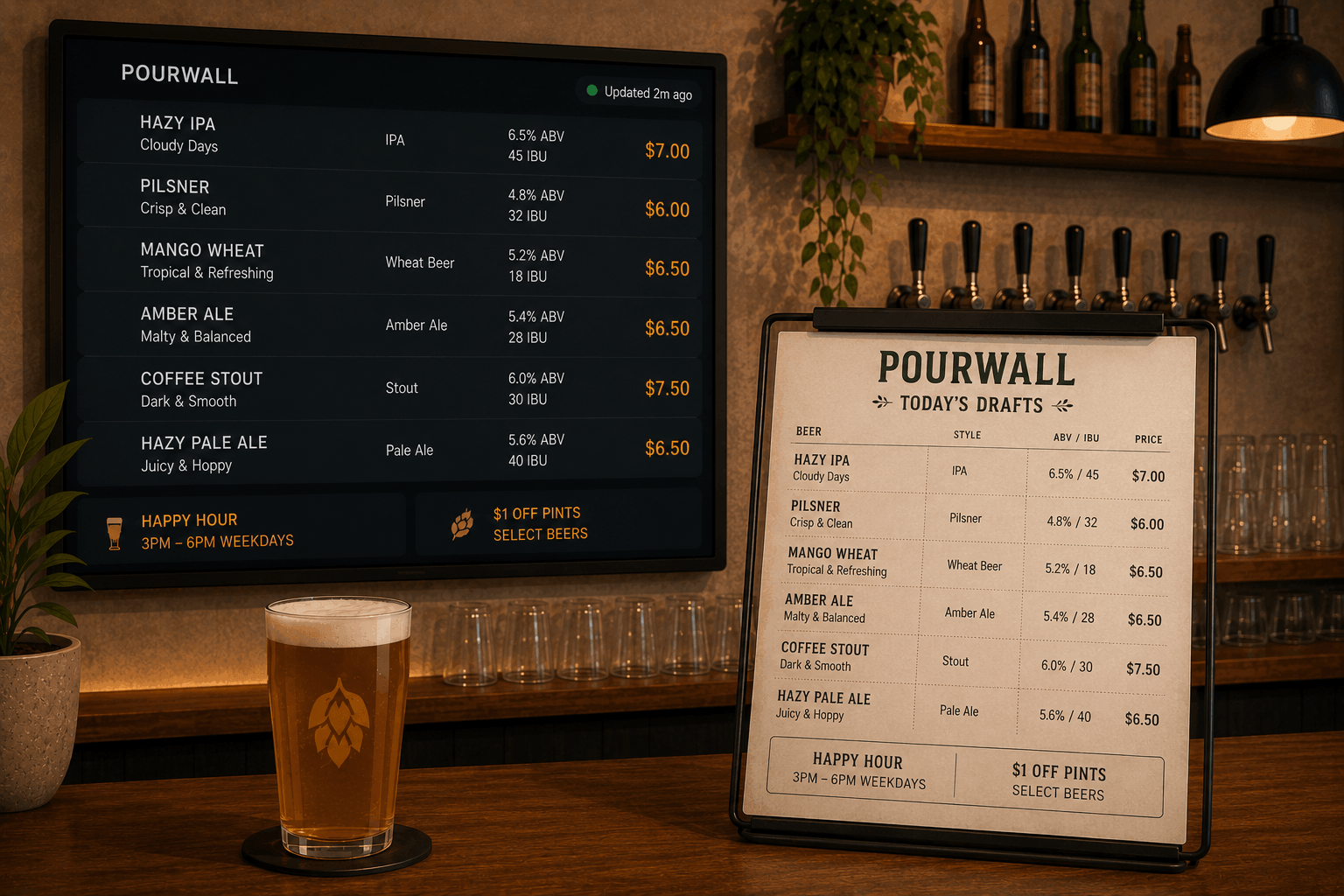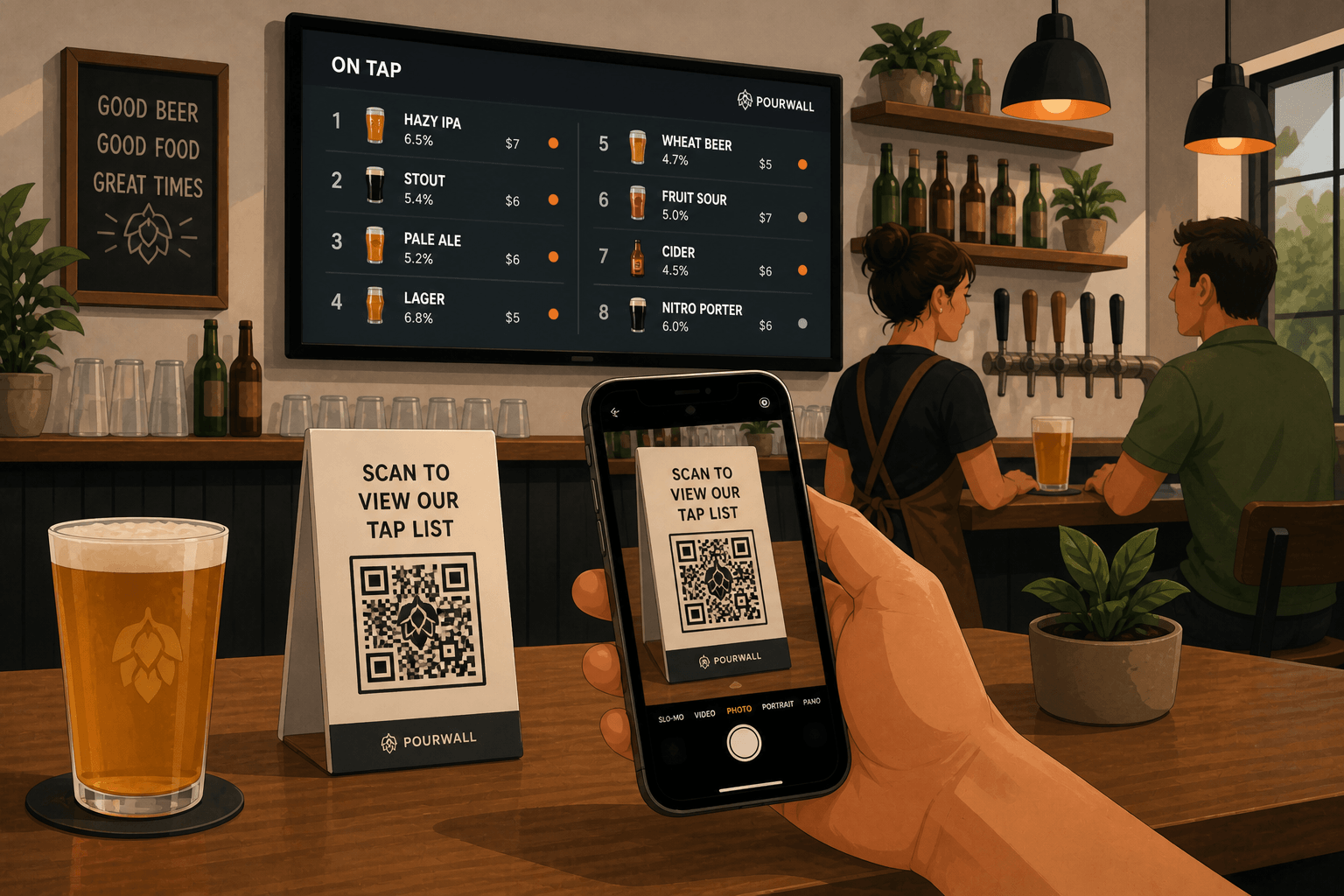
Customers interact with your menu in different ways.
Some look at a display, some prefer a printed menu, and others expect to scan a QR code and browse on their phone.
With Pourwall, those menu experiences can stay connected through the same live tap list.
One Tap List Available Across Every Format
Pourwall is designed to help you manage your beverage menu from one dashboard while displaying it across multiple formats.
That includes:
- displays
- Printable Menus
- Embedded Menus for websites
- QR code menus
When you update your tap list in Pourwall, those updates can also appear across your connected menu formats.
🔒 QR code menus are available on Pourwall Premium.
Step 1: Build Your Tap List
Start by creating your beverage menu in Pourwall:
- add beer, wine, cocktails, cider, or non-alcoholic beverages
- customize details like ABV, pricing, descriptions, and categories
- arrange items however you want them displayed
This becomes the source for your QR code menu and other connected menu experiences.
Step 2: Generate a QR Code Menu
With Pourwall Premium, you can generate a QR code that links directly to your live beverage menu.
Customers can scan the QR code to view your current beverage menu from their phone.
This allows customers to:
- access the current menu from their phone
- browse beverages without downloading an app
- view updated beverage information automatically
Because the QR code menu is connected to your tap list, you do not need to maintain a separate mobile menu.
This makes it easier to keep your beer menu and beverage menu aligned across displays and mobile devices.
You can also customize how the QR code menu appears, including:
- colors and branding
- visible beverage details
- grouping and sorting options
- menu layout preferences
Before sharing the QR code, you can preview how the menu will appear on mobile devices.
Step 3: Use QR Menus Alongside Your Other Displays
QR menus work best as part of a flexible beverage menu setup.
You can place QR codes:
- on tables or bar tops
- near displays
- on printed menus
- around event or tasting areas
This gives customers multiple ways to access the same current beverage menu.
Why QR Code Menus Matter
Different customers prefer different menu experiences.
Some want a quick glance at a display. Some prefer a printed menu. Others would rather browse from their phone.
Providing multiple ways to access your beverage menu helps make the experience more flexible while keeping menu information more consistent.
Keep Your Beverage Information Consistent
Managing separate menu systems can create unnecessary work.
When menus are updated independently:
- pricing can become inconsistent
- unavailable beverages may still appear
- seasonal items may stay listed too long
- staff and customers may reference different menus
Using the same tap list across QR menus, displays, and printed menus helps reduce those inconsistencies.
Start Simple, Then Expand
You can start with Pourwall for free and upgrade to Premium when you are ready to expand across:
- QR code menus
- Embedded Menus for websites
- Printable Menus
- multiple displays
This allows you to manage beverage information across digital and physical menu experiences from the same platform.
Final Thoughts
Your beverage menu does not need to live in a single format.
With Pourwall QR code menus, customers can access the same current beverage information whether they are viewing a display, reading a printed menu, or scanning a QR code from their phone.