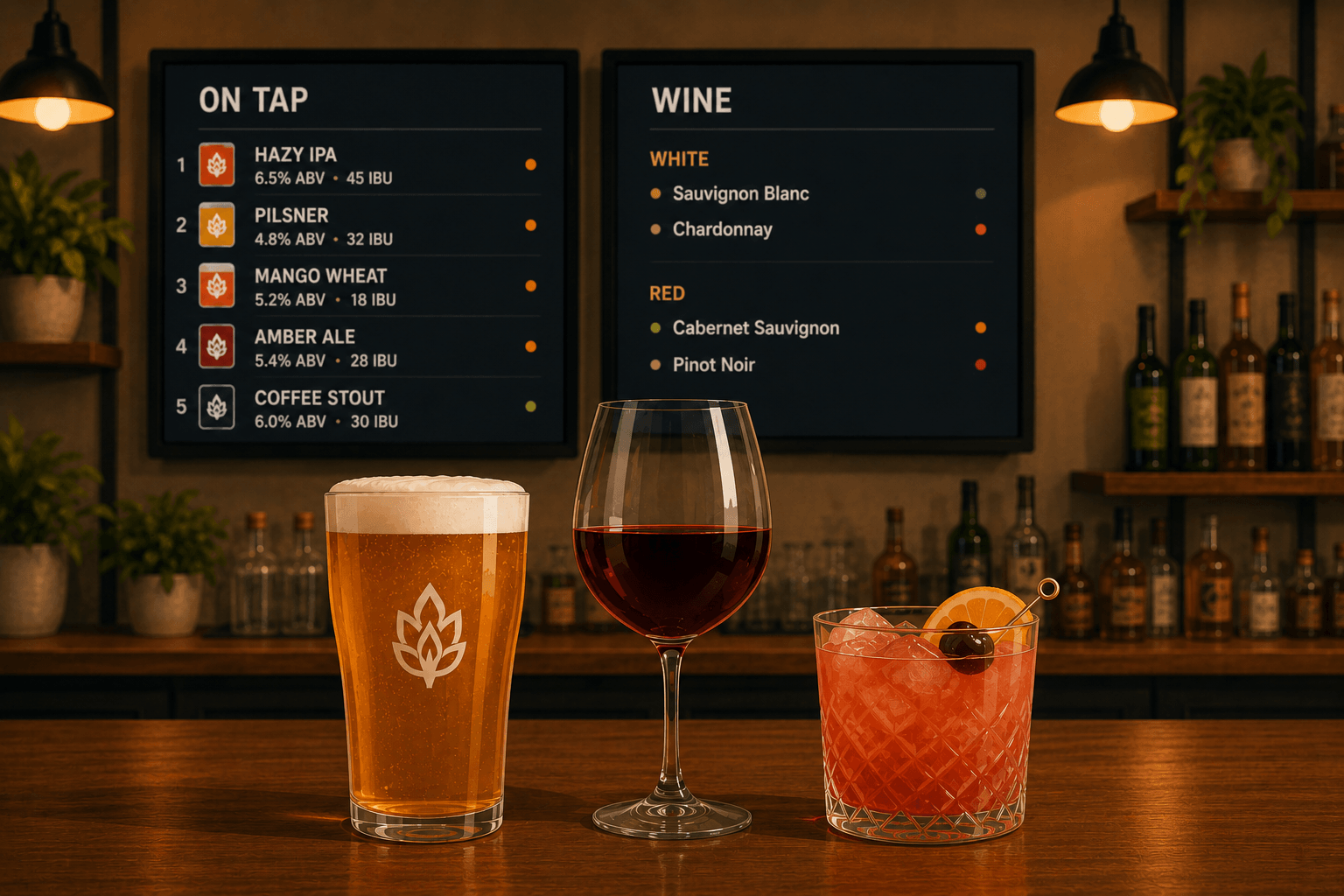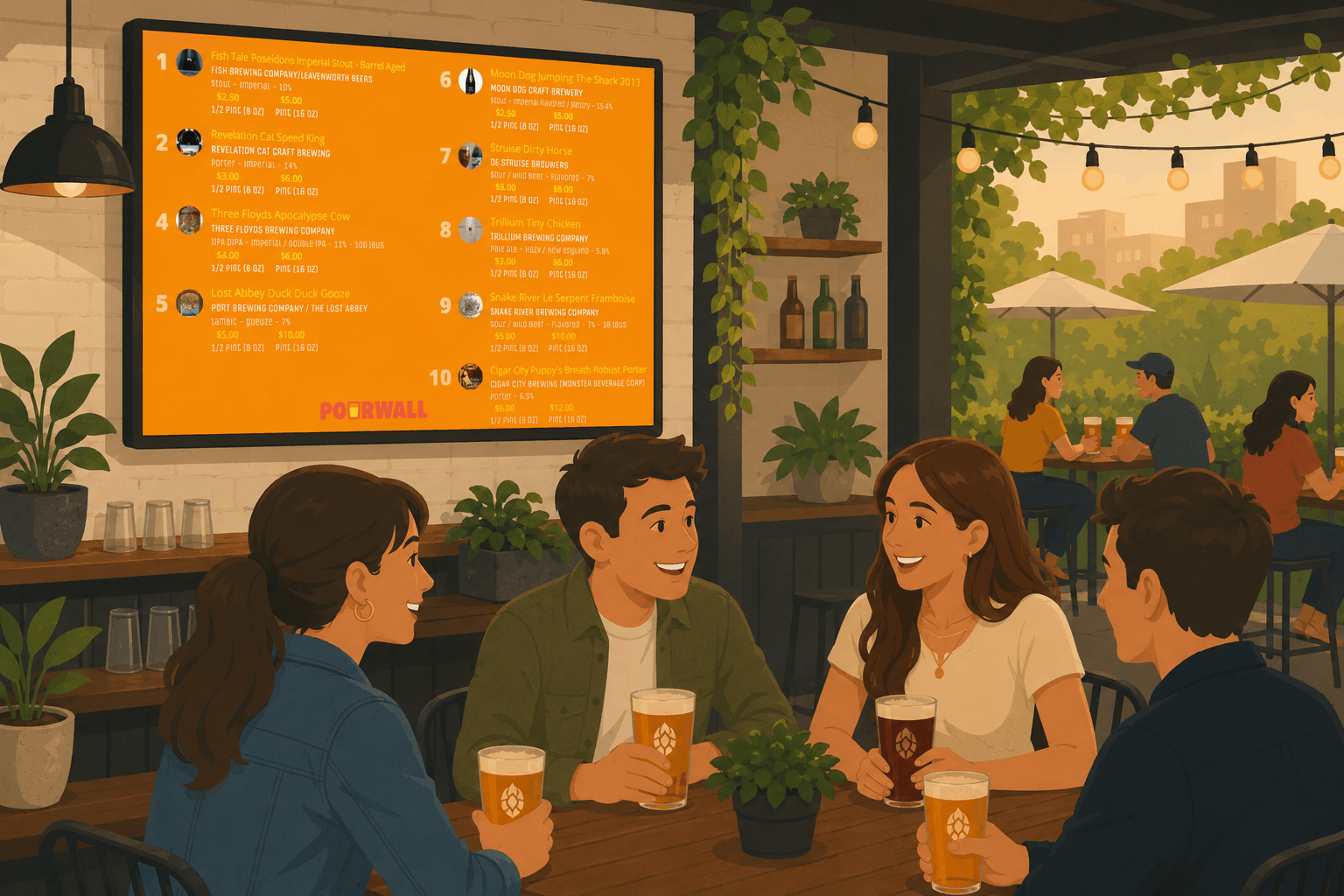
If you still update printed menus by hand, you are probably spending more time than necessary keeping them current.
Many bars and restaurants manage the same menu in multiple places:
- TV displays
- printed menus
- QR menus
- websites
That often leads to outdated information, inconsistent pricing, or missing beverages.
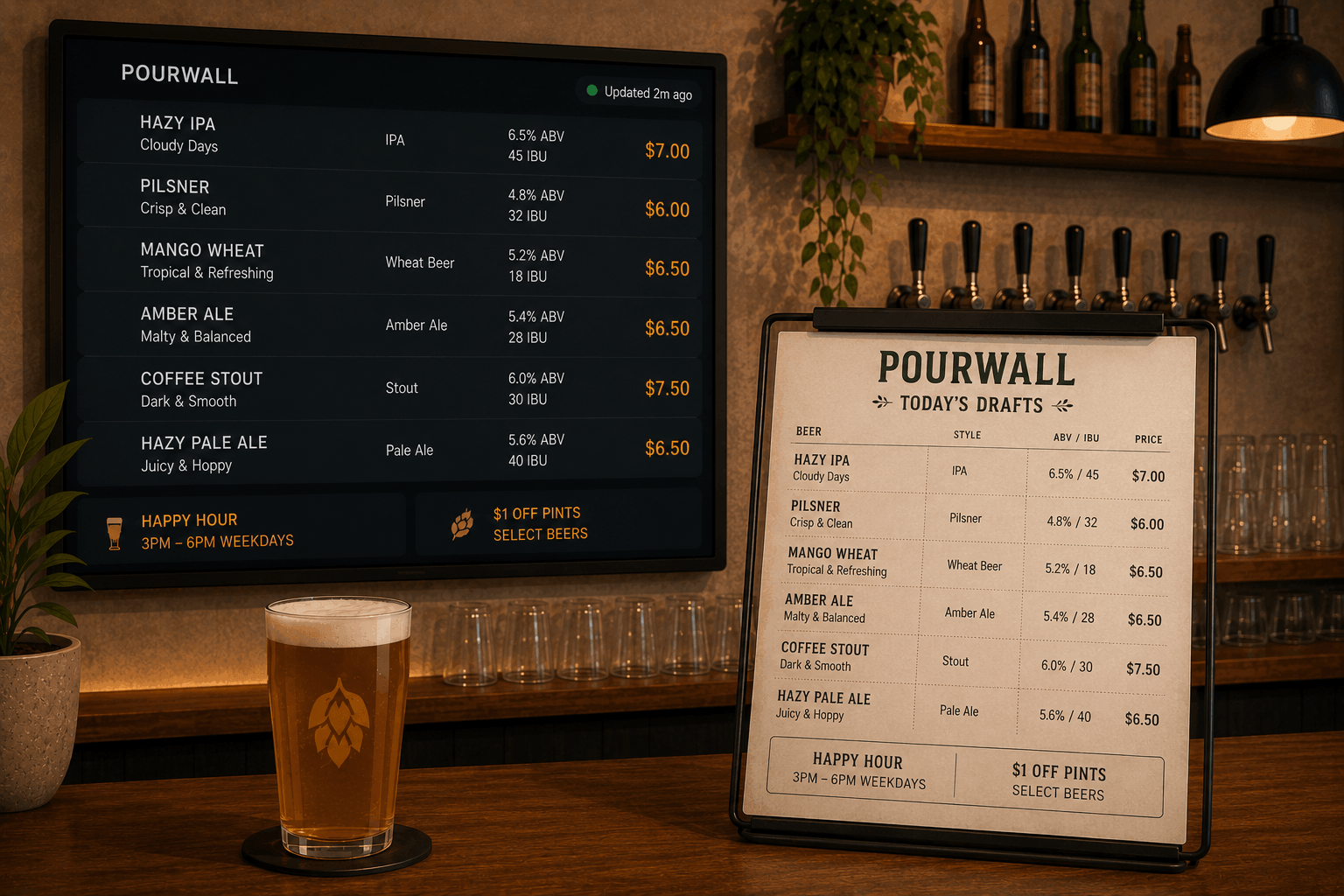
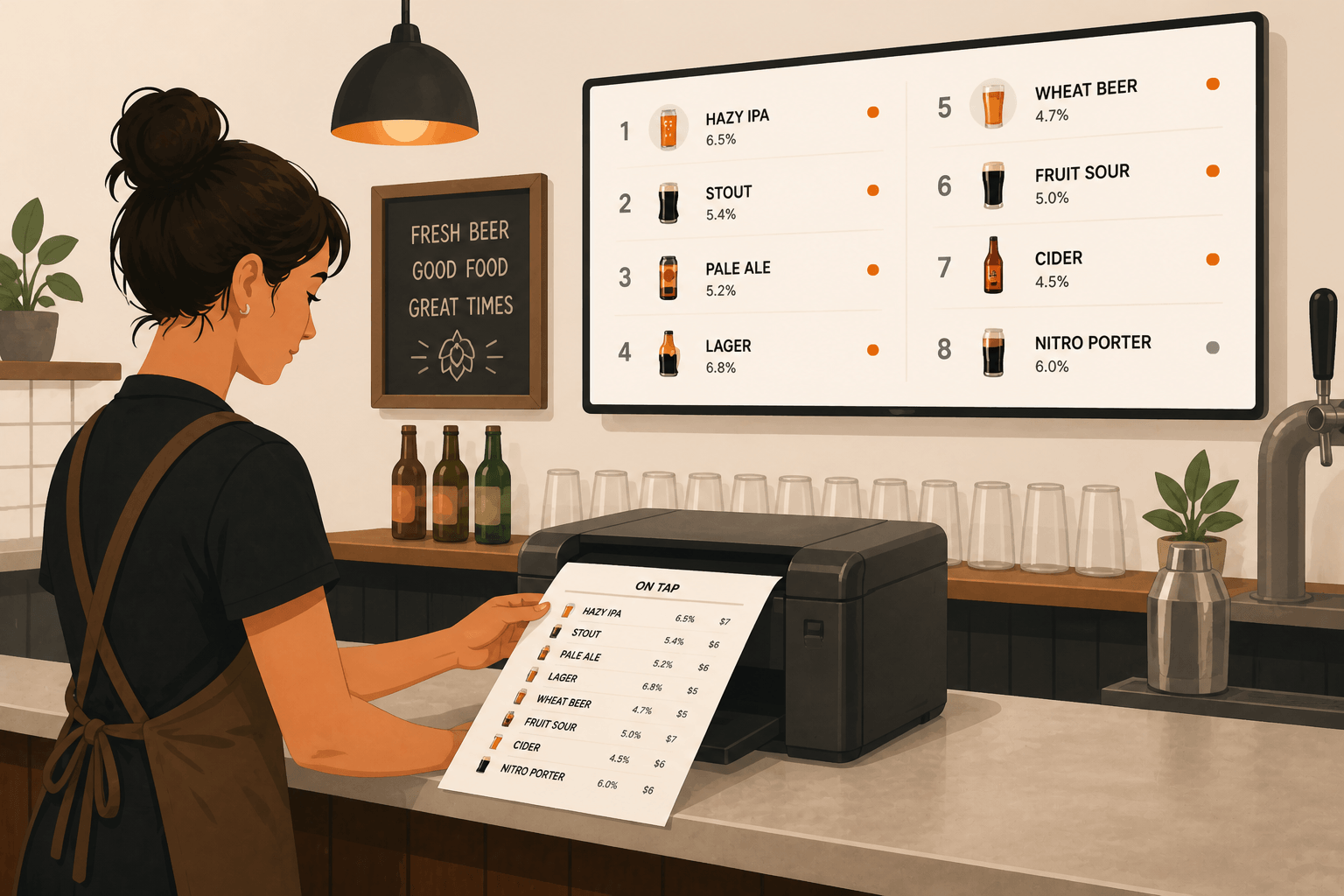
With Pourwall, you can generate printable menus directly from your live tap list so your printed menus stay aligned with the rest of your beverage program.
One Tap List for Digital and Print
Pourwall is designed to help you manage your beverage menu from a single dashboard.
From the same tap list, you can create:
- TV displays
- printable menus
- QR menus
- Embedded Menus for websites
When you update your tap list in Pourwall, those updates can also be reflected in your printable menu layouts.
🔒 Printable Menus are available on Pourwall Premium.
Step 1: Build Your Tap List
Start by creating your beverage menu in Pourwall:
- Add beer, wine, cocktails, cider, or non-alcoholic beverages
- Customize details like ABV, pricing, descriptions, and categories
- Organize items however you want them displayed
This becomes the source for both your digital displays and your printable menus.
Step 2: Create a Printable Menu
With Pourwall Premium, you can generate a Printable Menu directly from your tap list.
You can customize the layout and appearance of your printed menu, including:
- paper size and orientation
- fonts and text sizing
- colors and branding
- visible beverage details
- grouping and sorting options
You can also choose how beverages are organized by category, brewery, style, or other menu settings.
Before printing, you can preview the menu layout to see how it will appear.
Step 3: Print or Export Your Menu
Once your Printable Menu is ready, you can generate a print-ready version for your staff or customers.
This makes it easier to:
- update menus for rotating taps
- keep printed pricing aligned with your live menu
- create menus for tables, events, or special releases
- avoid manually rebuilding menus in separate design tools
Because the menu is connected to your Pourwall tap list, updating your beverage information becomes much simpler.
Why Printable Menus Still Matter
Even with digital displays and QR menus, printed menus are still useful in many environments.
Customers often prefer physical menus when:
- seated at a table
- attending events or tastings
- browsing large beverage selections
- comparing styles, pricing, or flights
Having accurate printed menus helps create a more consistent customer experience across your displays and service areas.
Keep Your Beverage Information Consistent
One of the biggest challenges with printed menus is keeping them updated.
When menus are managed separately, it becomes easy for:
- pricing to drift
- beverages to stay listed after they are gone
- descriptions to become inconsistent
- seasonal items to remain on old menus
Using Pourwall as the source for your printable menus helps reduce those inconsistencies.
Start Simple, Then Expand
You can start with Pourwall for free and upgrade to Premium when you are ready to expand your menu system across:
- Printable Menus
- QR menus
- Embedded Menus
- multiple displays
This allows you to manage beverage information across print and digital experiences from the same platform.
Final Thoughts
Printed menus do not need to be separate from your digital menu system.
With Pourwall Printable Menus, you can create print-ready beverage menus directly from your live tap list, helping keep your displays, websites, QR menus, and printed materials aligned across every customer touchpoint.