You can use tap numbers to control which taps appear on each page of your Pourwall screens.
This is useful if you want to:
Show different parts of the same tap list on different TVs. Separate beverage types into different pages, such as beer on one page and wine on another. Keep everything managed from the same source tap list and location.
The key is to organize your taps into number ranges, then assign the matching range to each page.
Organize Your Tap Numbers
First, decide which taps should appear together.
For example:
Taps 1–10: Beers Taps 11–20: Wines
Edit the tap numbers in your source tap list so that every beverage is included in the correct range.
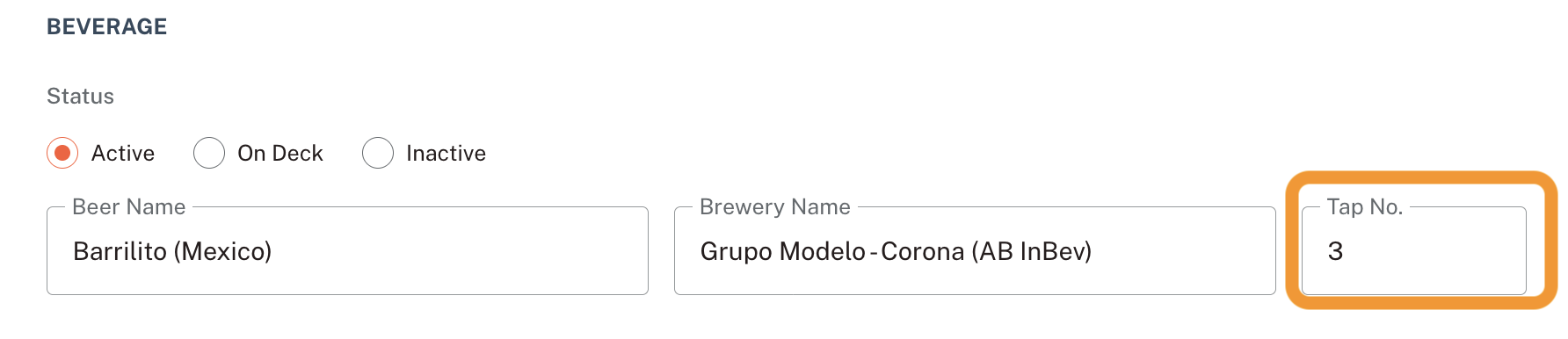
If you add or remove taps later, make sure your numbering still keeps each group together.
For example, if you add another beer, you could change the ranges to:
Taps 1–11: Beers Taps 12–21: Wines
You will also need to update the tap ranges on your pages to match.
Show Different Taps on Different Screens
If you want two TVs to show different parts of the same source tap list:
Create or edit your first Screen. Create a Tap List page inside the Screen. Set the Tap Number Start to 1. Set the Tap Number End to 10. Save your changes.
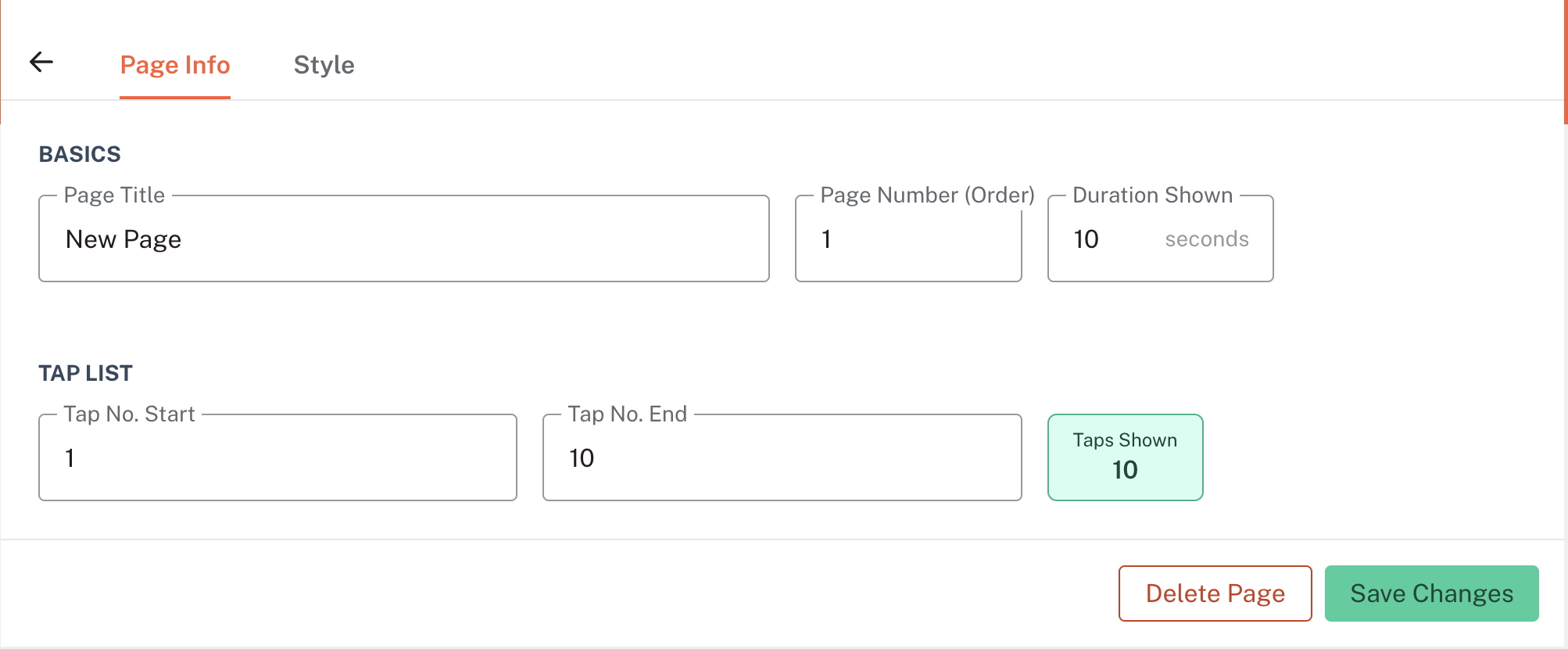
Screen 1 will now display taps 1–10.
If the Screen contains more than one Tap List page and you want all of those pages to show the same group of taps, use the same 1–10 range on each page.
Next, set up your second Screen:
Create or edit your second Screen. Create a Tap List page inside the Screen. Set the Tap Number Start to 11. Set the Tap Number End to 20. Save your changes.
Screen 2 will now display taps 11–20.
Both Screens still use the same source tap list. The tap number range determines which taps each Screen displays.
Show Different Beverage Types on Different Pages
You can use the same method to organize different beverage types across pages of a single Screen.
For example, if your source tap list is organized like this:
Taps 1–10: Beers Taps 11–20: Wines
Set up your pages like this:
On your Beer page, set Tap Number Start to 1 and Tap Number End to 10. On your Wine page, set Tap Number Start to 11 and Tap Number End to 20. Save your changes.
The first page will display your beers, while the second page will display your wines.
You can use the same setup for any groups you want, including cocktails, cider, non-alcoholic drinks, or other beverages.
Keep Your Tap Ranges Updated
The important part is keeping your tap numbers organized as your menu changes.
When adding a new beverage, give it a tap number within the group where you want it to appear. If your ranges change, update the Tap Number Start and Tap Number End on the affected pages as well.
This keeps each Screen or page showing the right section of your source tap list while you continue managing your beverages from one place.
Note: Creating multiple Screens requires a Premium account. All Screens within the same location use the same source tap list. If you need a separate source tap list, you’ll need to add another location, which costs an additional $30/month or $290/year.