Free digital tap list software is a good fit when its ongoing free plan covers your drinks, your screens and the way staff update the menu. The advertised price is only the first check. You also need to know whether it works with your equipment and whether essential features disappear when a trial ends.
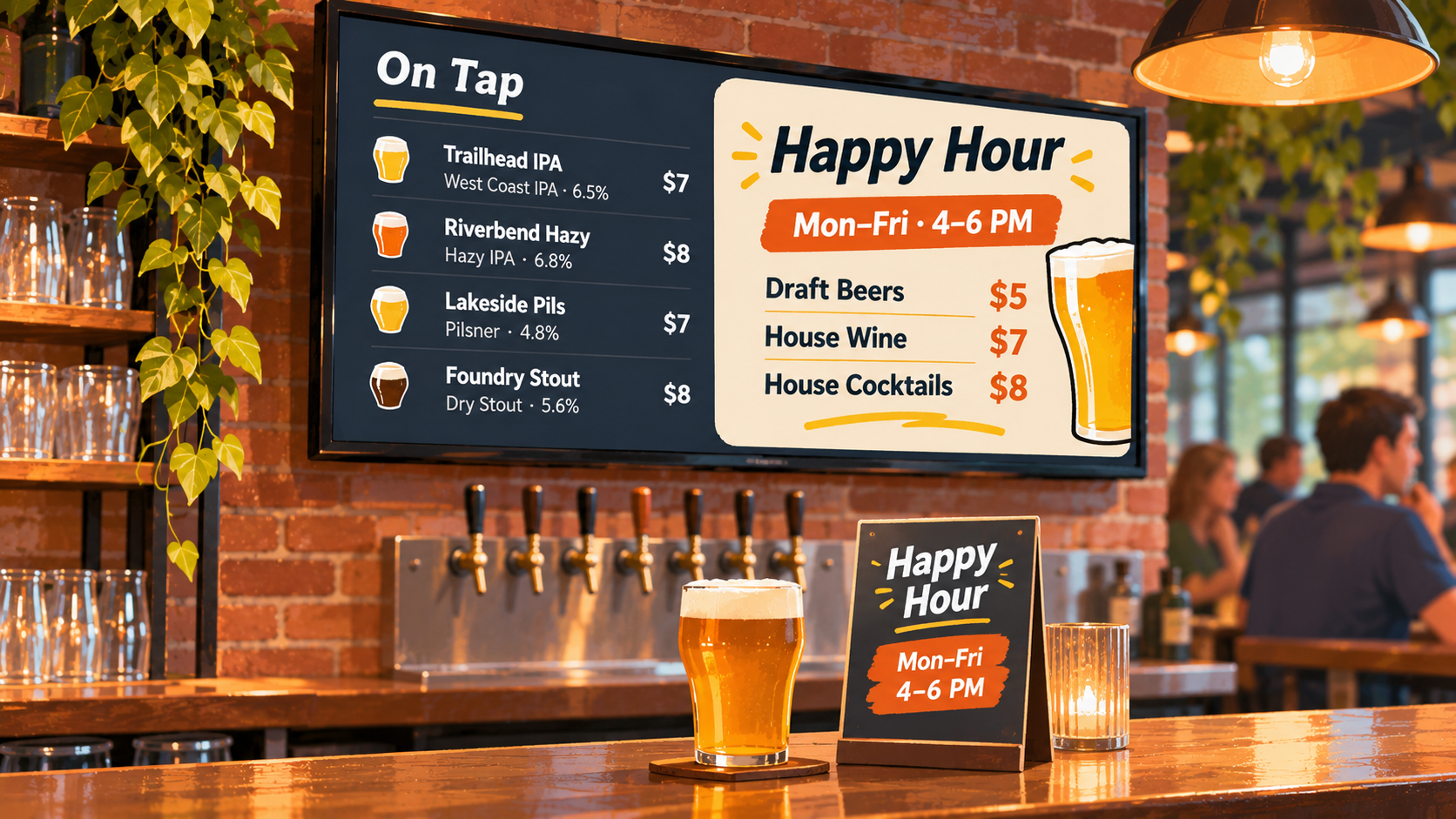
Before choosing, put a representative menu on the TV you intend to use. Change a drink from your phone, check the serving sizes and prices, and read the result from where customers stand. That test will tell you more than a polished demo menu.
What to check before choosing a free plan
Start with your venue’s requirements, then compare them with the plan. Keep a short record of what is included, what requires payment and what you have actually tested.
Free forever or a temporary trial?
An ongoing free tier and a free trial answer different needs. A trial lets you evaluate paid features for a limited time. An ongoing free tier lets you continue using the software within its free-plan limits.
Check whether signup requires a credit card, when any trial ends and what happens afterward. Will the menu you build during the trial still work on the free plan? Testing a paid feature successfully does not establish that the free tier meets your needs.
Screen and tap limits
Count the screens you need now, including any behind a second bar or in another room. Then count the drinks you want to list, including rotating selections.
Look for separate limits on taps and screens. A plan with room for your full drink list may still allow only one screen. Check whether additional screens are included indefinitely or available only during a trial.
Also confirm that you can show your list in a readable layout. Fitting every drink into the account is different from fitting every drink comfortably on the TV.
Will it work with your TV and streaming device?
The device you use to edit the menu and the equipment that shows it are separate compatibility checks. Being able to open the editor on your phone does not establish that the menu will work on your TV.
Write down the TV’s model and the name of any streaming device attached to it. Compare those details with the software’s supported-device list. “Smart TV” alone is not enough information, and support for one streaming device does not imply support for another.
If you need an additional device, include that purchase in your setup budget. Free software does not necessarily mean you already own everything needed to display it.
Changing drinks, servings and prices from a phone
Test the work you will do when a keg kicks, not just the initial menu setup.
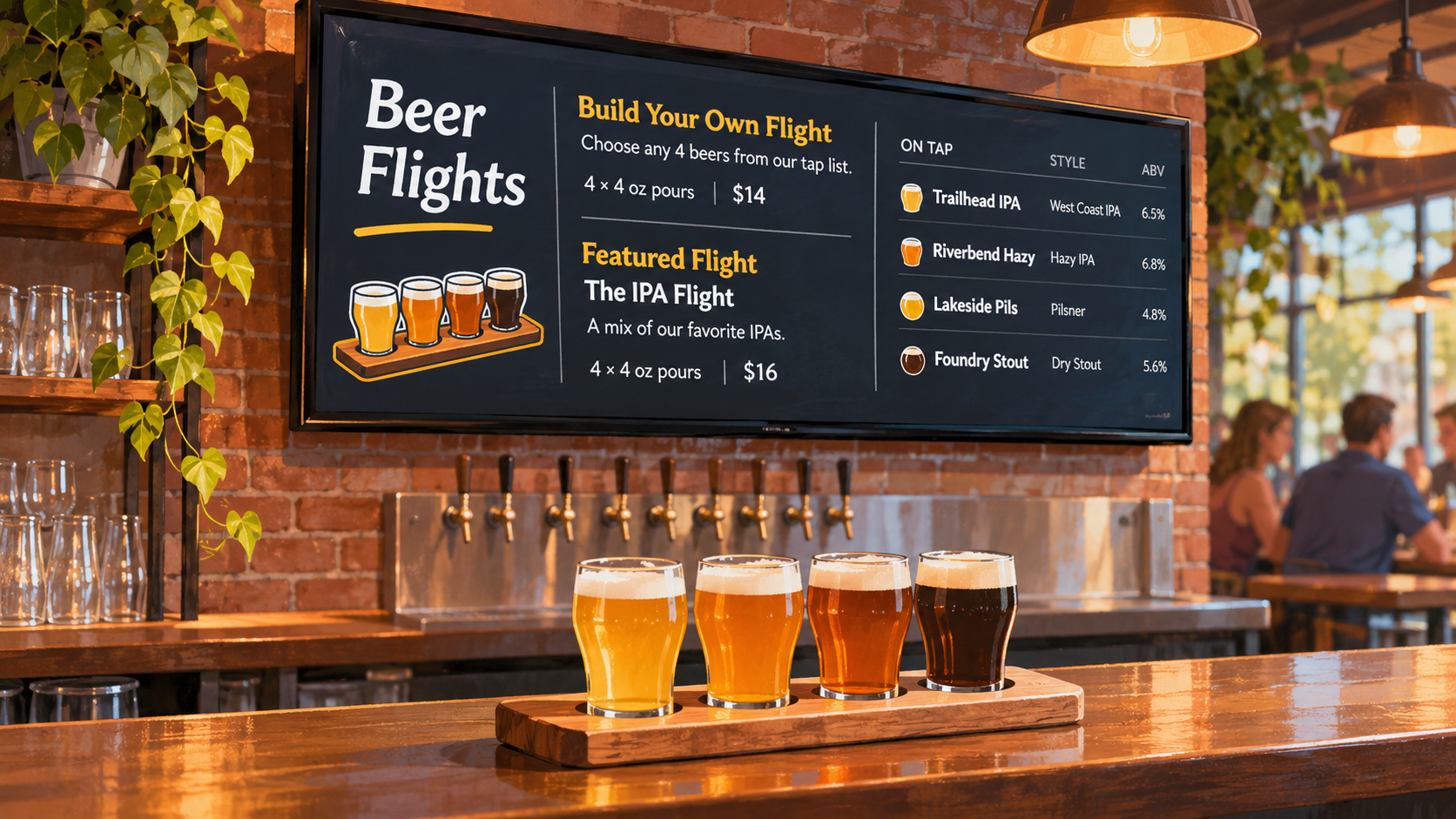
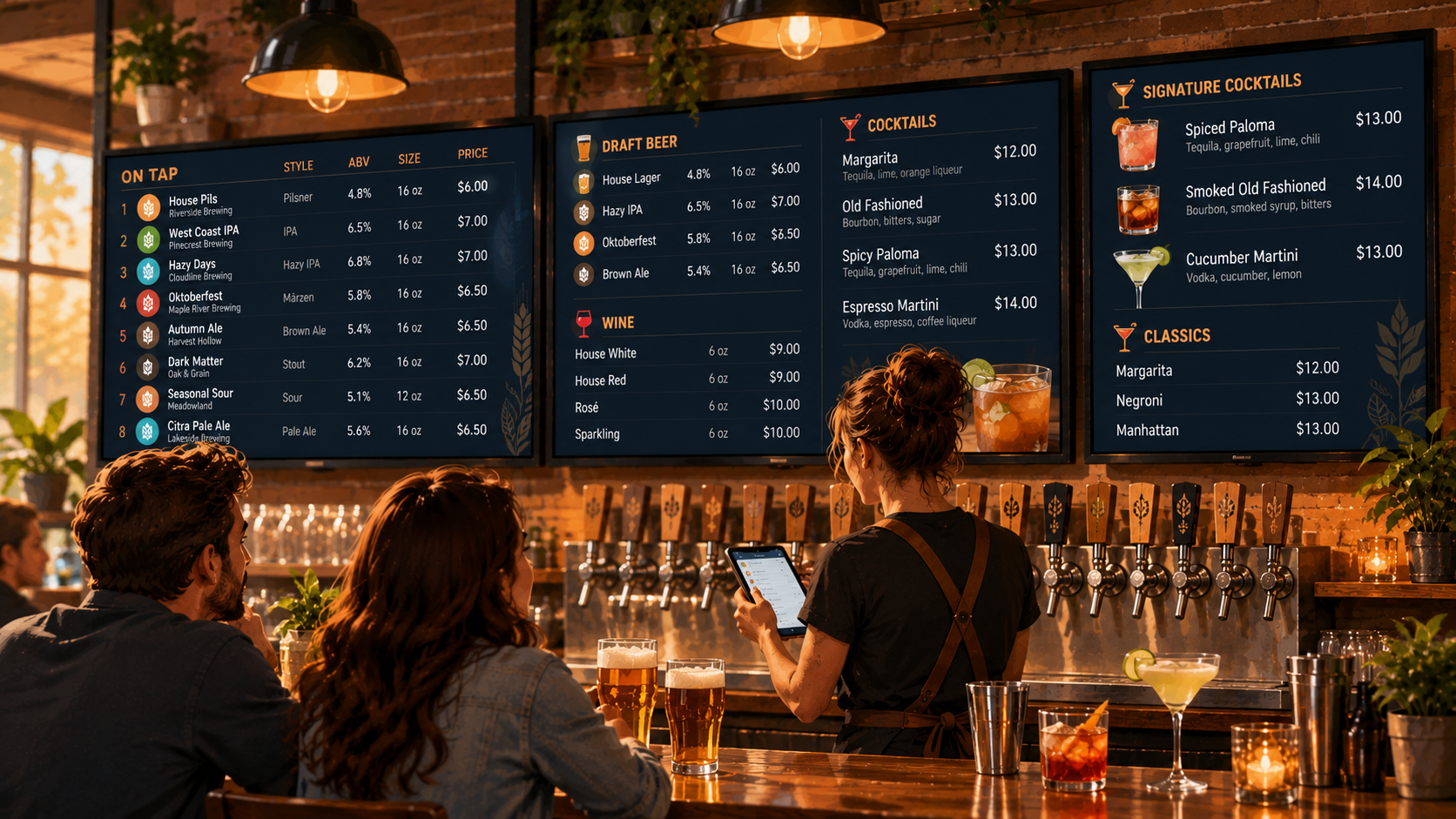
Can you remove the unavailable beer, add its replacement and enter the right serving prices from a phone? Can you include the details customers need, such as brewery, style and ABV? If you offer a beer in a tasting glass and a larger pour, check that each serving can have its own size and price.
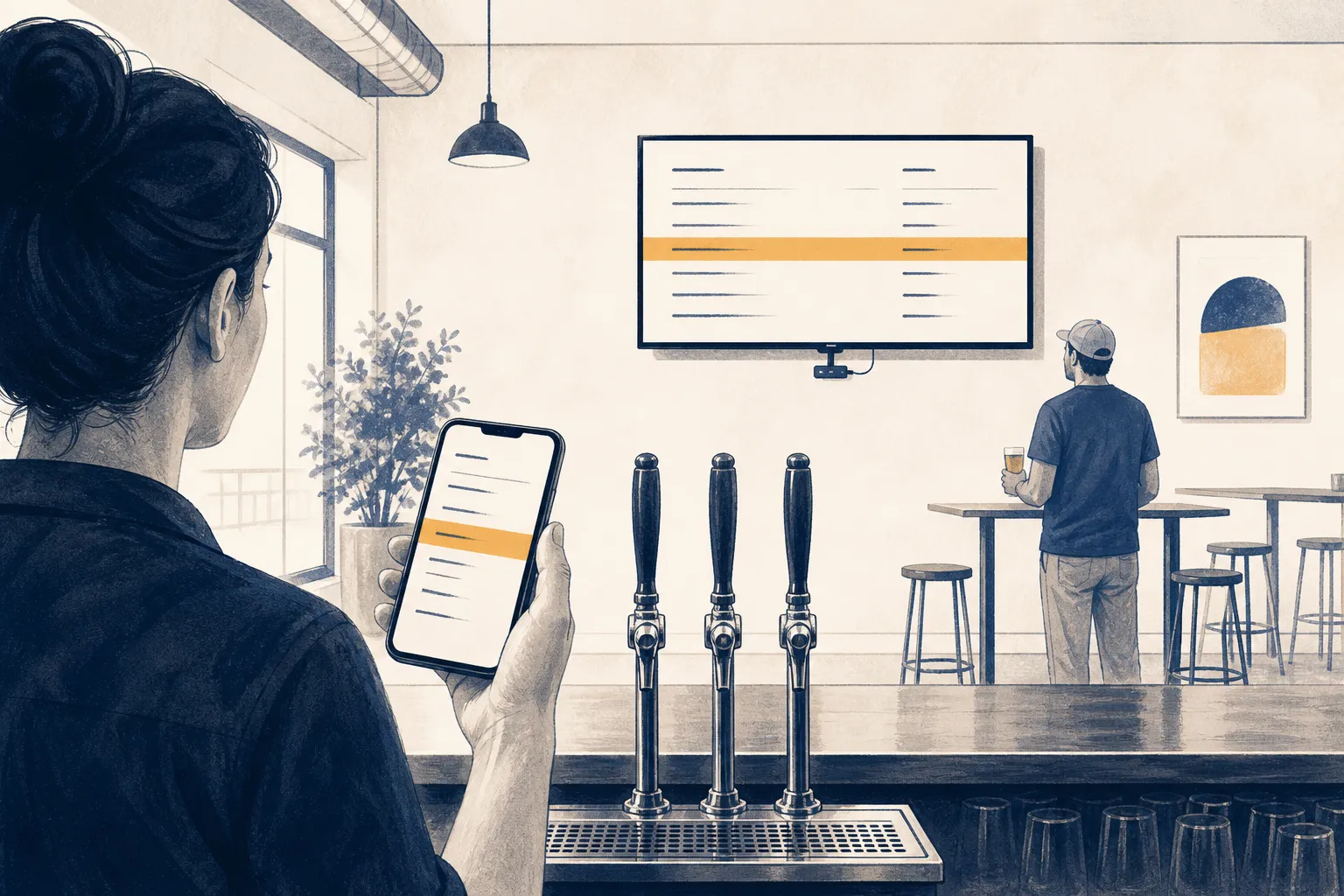
Confirm who can make those changes and whether separate staff access costs extra. Save an edit and watch the TV to see when it appears. Do not assume that saving a change means the screen has updated.
Which menu formats cost extra?
Treat each menu format as a separate requirement:
- The tap list on the TV.
- A QR menu customers open on their phones.
- A print-ready menu for tables or the bar.
- A live menu embedded on your website.
Check whether each format is included in the ongoing free tier, reserved for a paid plan or available only during a trial. If you need a QR menu from the start, include it in the comparison rather than treating it as a later extra.
A printed copy cannot update after it leaves the printer. Even when software generates a fresh menu from current information, someone must print it and replace the old copies.
What changes the bill as you grow?
Price the next setup you are likely to need, as well as today’s setup. That might mean another screen, staff accounts or another location.
Find out whether charges apply per screen, per person or per location. Compare monthly and annual terms, including the amount you must pay upfront. Record the total cost for your intended setup, not just the starting price shown on the pricing page.
Run a shift test on your actual TV
Use a quiet period to simulate the menu work of a busy shift. Test with your own drinks and equipment rather than relying on the vendor’s sample list.
- Build a representative menu. Include a long beer name, the details you normally publish and a drink with multiple serving sizes and prices. Use enough entries to resemble your usual list.
- Show it on the intended TV. Use the TV and supported streaming device that will stay in service. Follow the vendor’s setup instructions and note any extra equipment required.
- Simulate a kicked keg. From your phone, remove or deactivate a drink, add its replacement and check its servings and prices. Watch the screen while you make the changes.
- Read it as a customer. Stand at the ordering point and check it from relevant seats under normal venue lighting. Read the longer names, serving sizes and prices without using your phone as a reference.
- Try every required menu format. Open the QR menu, generate a printout or check the website version if those are part of your workflow. Record any request to upgrade.
- Check the plan behind the test. Confirm which successful steps used ongoing free features and which depended on trial access.
If the screen is difficult to read, try reducing optional text or changing the layout before rejecting the software. If the required layout is paid, record that as a plan limit. If your equipment is unsupported, record it as a compatibility problem rather than a free-plan limit.
Give each requirement a simple result: works free, requires payment or did not work in the test. A free plan fits only when the features you need now work without temporary access to paid features.
One free-plan example: Pourwall
Basic is free forever for one screen with unlimited taps, with no credit card required. Apply the same shift test to it as you would to any other option.
You can manage the tap list from a phone, tablet or computer, and changes appear on connected screens in real time. Each tap holds beverage details and one or more servings with a vessel, size and price. That lets you test both replacing a beer and changing its available pours.
Supported screen devices are Google TV / Android TV, a Fire TV Stick and Chromecast. Match that list to your equipment rather than assuming another device will work.
Premium adds unlimited screens, QR menus, print-ready menus, a website embed, multiple locations and team members. Listed standard pricing is $30 per month or $290 per year, per location. Additional locations are billed per location; confirm current pricing and terms before budgeting for an upgrade.
If you need one TV menu, Basic covers the screen and tap-count requirements. If you also need a QR menu, another screen or separate team access, those requirements fall under Premium. It is a menu tool, not a POS or inventory system, so evaluate those workflows separately.
Your checklist before signing up
Fill this in after testing, while the results are still fresh:
- Ongoing free access confirmed: ______. Trial ends, if applicable: ______.
- Required taps: ______. Required screens: ______. Both covered by the chosen plan: ______.
- Actual TV and streaming device tested: ______.
- Phone edit completed, including a replacement drink and serving prices: ______.
- Names, sizes and prices readable from customer positions: ______.
- Required QR, print and website formats checked. Paid features: ______.
- Cost of the next likely setup, including added screens, staff or locations: ______.
- Decision: use the free plan, budget for the upgrade or test another option: ______.